
How to Add Your Class Schedule to Google Calendar
Step-by-step guide to import your class schedule into Google Calendar using an .ICS file. Sync recurring lectures, room locations, and reminders in minutes.
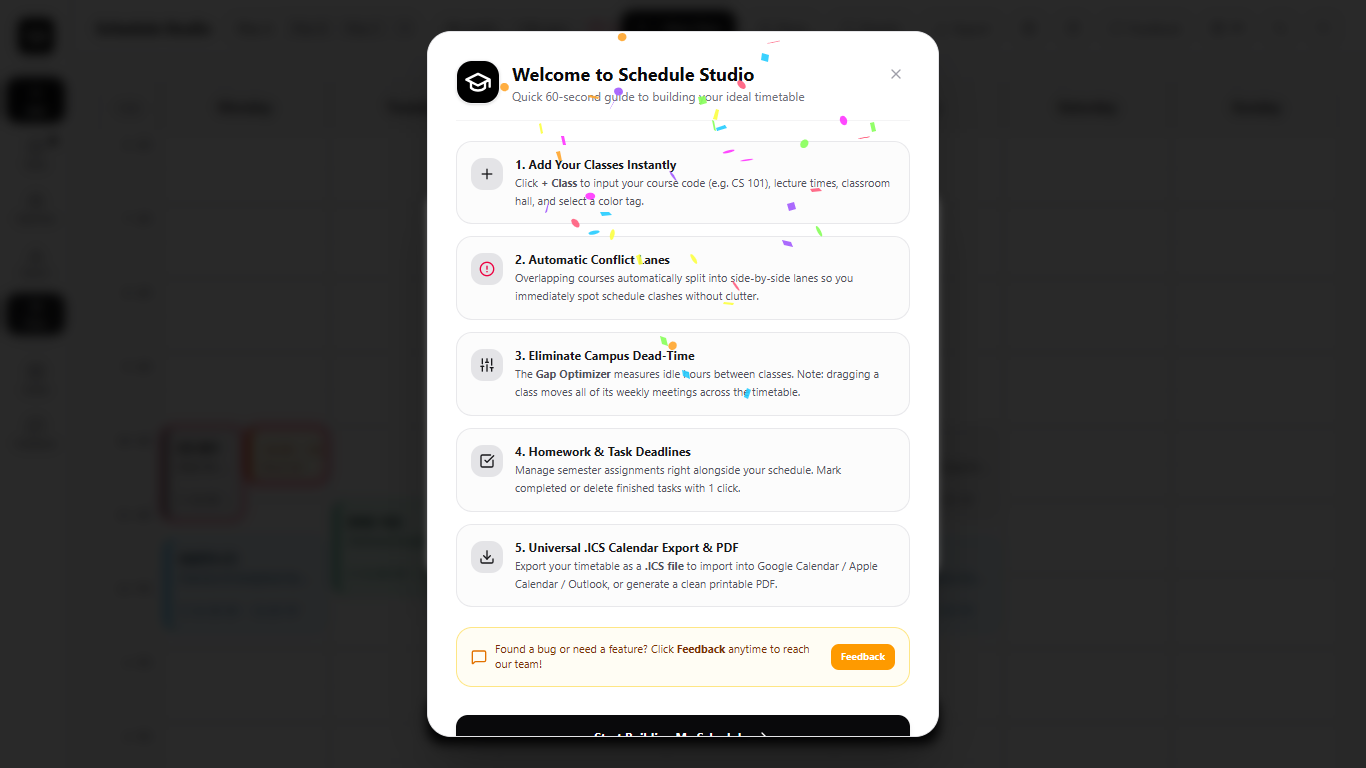
How to Add Your Class Schedule to Google Calendar
Every semester begins with the exact same routine: you spend hours finalizing your course registration, only to face the tedious prospect of manually typing dozens of individual class sessions into Google Calendar on your phone.
Manually entering four or five recurring courses—each with differing Monday/Wednesday/Friday or Tuesday/Thursday meeting hours, building codes, and instructor names—is not only mind-numbing, but it is also prone to human error. One misplaced “AM” or “PM” toggle can result in you sprinting across campus for an 8:00 AM quiz you thought started at noon.
The smarter, error-proof approach is to generate a standardized iCalendar (.ics) file and import your entire semester timetable into Google Calendar in a single operation.
Here is the complete, step-by-step workflow to export your timetable from Free Class Schedule Maker and synchronize it with Google Calendar on desktop and mobile.
What is an .ICS File and Why Is It the Academic Standard?
An .ICS file (short for iCalendar) is the universal file format used across virtually every digital scheduling platform in the world—including Google Calendar, Apple iCal, Microsoft Outlook, and Mozilla Thunderbird.
Unlike a static image (PNG) or document (PDF), an .ics file is structured data containing explicit calendar parameters for every class in your timetable:
- SUMMARY: The official course code and title (e.g.,
CS 101: Introduction to Computer Science). - LOCATION: The physical campus hall and room number (e.g.,
Science Hall 304). - DTSTART & DTEND: Precise clock start and end timestamps.
- RRULE (Recurrence Rule): Algorithmic instructions telling Google Calendar to repeat the event every Monday, Wednesday, and Friday for the duration of the 15-week academic semester.
When you import an .ics file, Google Calendar parses all these parameters instantly. Your entire weekly routine appears as clean, color-coordinated calendar blocks without a single minute of manual data entry.
Step 1: Build Your Weekly Timetable in Schedule Studio
Before downloading your calendar file, ensure your weekly course matrix is finalized:
- Open Schedule Studio in your web browser. No account registration or login is required.
- Click the “+ Add New Class” button.
- Enter your course details:
- Course Code & Name: e.g.,
ECON 101 Principles of Microeconomics - Instructor & Location: e.g.,
Prof. Davis | Campbell Hall 212 - Credits: e.g.,
3.0 - Meeting Days: Toggle your lecture cadence (e.g., Monday, Wednesday, Friday or Tuesday, Thursday).
- Time Interval: Select your exact start and end times (e.g.,
10:00 AM – 10:50 AM).
- Course Code & Name: e.g.,
- Repeat this process for all lectures, laboratory recitations, and campus study blocks.
- Review the interactive weekly grid to verify that no red conflict borders or overlapping split lanes exist.
Step 2: Download Your Tailored .ICS Calendar File
Once your timetable is configured:
- In the left navigation toolbar or top studio header, click “Export Hub”.
- From the export options modal, select “Export .ICS (iCalendar)”.
- Your browser will instantly generate and download a clean file named
class_schedule.icsto your computer or mobile downloads folder.
(Note: Our export engine operates 100% client-side in your browser, meaning your course names and personal schedules are never transmitted to external servers.)
Step 3: Create a Dedicated Sub-Calendar in Google Calendar (Recommended)
Before importing the .ics file, here is a pro-tip used by high-performing college students: create a separate calendar exclusively for your classes.
If you import your class schedule directly into your default “Personal” calendar, every class event becomes intermingled with your family birthdays, dentist appointments, and personal reminders. If your registration changes during Drop/Add week, deleting individual classes from your primary calendar is tedious.
Creating a dedicated “Fall 2026 Classes” calendar allows you to:
- Toggle your entire class schedule on and off with a single checkbox when viewing busy weeks.
- Assign a distinctive color palette (e.g., deep university navy or sage green) to all academic commitments.
- Delete or replace the entire semester schedule with one click if your term schedule changes.
How to Create a Dedicated Academic Calendar:
- Open Google Calendar on your desktop computer.
- Look at the left sidebar under the small monthly date picker.
- Next to “Other calendars”, click the
+(plus) icon. - Select “Create new calendar”.
- Name your calendar (e.g.,
Fall 2026 Classes — University of Florida). - Click “Create calendar”. Within five seconds, your new blank calendar will appear in your left sidebar list.
Step 4: Import the .ICS File into Google Calendar
Now that your target calendar is ready, import your schedule:
- In the top-right corner of Google Calendar, click the Settings Gear icon (
⚙) and select “Settings”. - In the left-hand navigation menu of the Settings page, click “Import & export”.
- Under the “Import” section, click “Select file from your computer”.
- Browse to your computer’s
Downloadsfolder and select theclass_schedule.icsfile you exported from Schedule Studio. - In the “Add to calendar” dropdown menu directly below, select the dedicated academic calendar you created in Step 3 (or select your primary calendar if you prefer).
- Click the blue “Import” button.
Google Calendar will process the file for one to two seconds and display a confirmation dialogue:
"Imported XX out of XX events."
Click back to your main calendar view. Your entire weekly schedule will now be rendered across the calendar, repeating automatically across the entire academic term!
Step 5: Configure Smart Mobile Departure Notifications
To ensure you are never late for a morning quiz or laboratory safety check, configure Google Calendar’s notification rules:
- Hover over your academic calendar in the left sidebar under “My calendars”.
- Click the three vertical dots (
⋮) next to the calendar name and select “Settings and sharing”. - Scroll down to “Event notifications”.
- Set default notification triggers:
- Notification 1: 15 minutes before (ideal for walking across campus).
- Notification 2: 1 day before (helpful for evening preparation of lab notebooks).
- Open the Google Calendar app on your iPhone or Android device and ensure sync is enabled. Your phone will now alert you automatically before every class!
Common Troubleshooting Questions
What if my classes don’t appear on my phone after importing?
If you imported the calendar on your computer but your smartphone app is blank, open the Google Calendar app on your mobile device. Tap the three horizontal lines (hamburger menu) in the top-left corner, scroll to Settings, tap your account, locate your new academic calendar name, and ensure the “Sync” toggle is switched ON.
What should I do if my schedule changes during Drop/Add week?
If you swap a section on your university registrar portal, simply open Schedule Studio, adjust the class time, and re-export a new .ics file. In Google Calendar Settings, delete your old academic sub-calendar and import the new .ics file into a fresh sub-calendar. The entire refresh takes less than 60 seconds.
Summary Checklist
- Design your weekly timetable in Schedule Studio
- Export your
class_schedule.icsfile - Create a dedicated “Semester Classes” calendar in Google Calendar
- Import your
.icsfile via Google Calendar Settings - Set 15-minute campus departure alarms on your mobile device
Building a balanced, conflict-free schedule is the foundation of academic success. Use our free, private Schedule Studio to plan your upcoming semester and stay organized all year long.
Ready to optimize your semester schedule?
Test combinations, eliminate gaps, and export to iCal in minutes.